
This article is mainly around so that I can remember my current setup, and maybe it’ll help you be more productive, but it’s essentially a GUID on how to set up vscode and GitHub to be able to post to DEV.to.
Benefits
Well, the major one is that if you accidentally delete an article off DEV.to, instead of it being lost, you can just restore it from the GitHub repo. Your articles also aren’t tied to DEV.to so if you wanted to also post to a personal blog as well as to DEV.to, instead of having to copy and paste between websites, you can just update the Actions workflow to post to both. Additionally, ever accidentally hit publish when you meant to save a draft? I have, this makes that much harder to do as you’ve got a specific you can unset
Prerequisites
- DEV.to account
- GitHub account
- git
- vscode
First steps
You need to create a GitHub repo and name it something that makes sense to you. For me that’s DevToArticleRepo. On this repo I just set a simple description and use the MIT licence, because it’s easy to do and start as a private repo, just in case
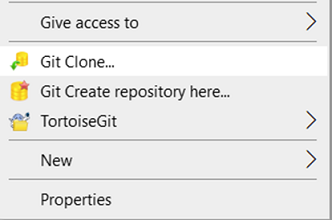
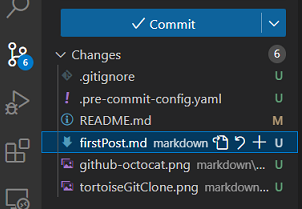
Once you’ve done this you need to pull down the repository using your favourite git tool. I tend to use tortoise git to start off with, then move to using vscode once it’s pulled down
Repository setup
If I’ve not got a .gitignore (because I couldn’t be bothered to search usually!) I add an empty .gitignore ready for me. I also like to add some pre-commits to my repository to help out. In every repository I make I tend to add the check-yaml, end-of-file-fixer, trailing-whitespace and detect-secrets. Also, as this is a primarily markup repository, I also added a linting tool called markdownlint.
For reference, here’s what the .pre-commit-config.yaml looks like for this repo
yaml
I then just run pre-commit run -a to make sure my current repo is good:

Visual Studio Code setup
As I’m using vscode for this, I also installed a few extensions to make my life easier:
- LTeX
- I think this should be obvious why this would be helpful!
- Provides both grammar and spell checking
- Markdown Preview Enhanced
- This is so that I can get the markdown preview to not be in dark mode, like it’s probably going to be viewed in
- Markdown All in One
- Provides an easier way to format Markdown
At this point I’m ready to start setting up my folder structure for the markdown. As it’s just starting out, and I’m definitely going to be below the 500MB limit GitHub gives you for a basic repository. It looks something like this:
markdown
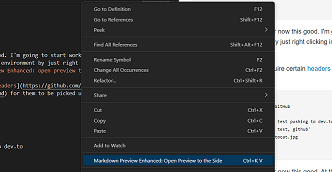
I’ll probably revise this, but for now this good. I’m going to start working on the file firstPost.md. In order to do this I set up my environment by just right-clicking in the file firstPost.md and select Markdown Preview Enhanced: open preview to the side
Dev.to setup
Once this is done, I’m ready to start editing the markdown. By default, Dev.to articles require certain headers for them to be picked up, so this file has been started with the following:
markdown
Once this is done, you can write your markdown article
GitHub setup
At this point, you’ve hopefully written your article and we’re pretty much done with the git side so you can close the 200 windows you have open explaining how to style markup. After this we’ll get ready to set up the GitHub actions project for pushing this code into the repo
It’s pretty straight forward to get started, all you need to do is grab an API token from Dev.to and place it in the repositories’ secrets tab with a memorable name. You can find the API key by clicking on your profile picture and going to Extensions > generate API key
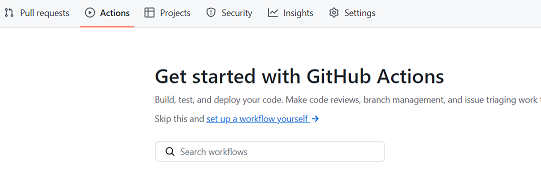
We can now start working on the “free” build (GitHub gives you a load of credits every month) with GitHub actions by going to actions and selecting set up a workflow yourself:
Writing the build pipeline
Once started, the main thing we’re going to be doing is using the following extension which allows you to publish to Dev.to. It’s really quite straightforward and I’ve got the below GitHub actions YAML file to publish it
yaml
When you’ve managed a successful run and published an article, you should notice that the start of your markdown has been updated with something like the following:
markdown
If this updates in the future, it can be found here
Once this is done, just commit the file and the GitHub action should run. All being well
As I’m going through using this repository, here are some things I’ve noticed to keep in mind
- Your repository needs to be public to get the code to work if you have any images, otherwise you’ll get errors around images not being public
- You can have a maximum of 4 tags, otherwise you’ll get unprocessable entity
- Articles sometimes fail on first post, what you can do to get around this is change a little text and then push again
- Images are cached by DEV.to, you can force them to update by slightly changing the file name
- If you edit an article that’s published via GitHub, the changes will be reverted on the next run of the Action build
- Cover images can be pretty finicky and do break the build regularly if you start changing them
- I created a
localfolder for anything that I didn’t want pushed into Git yet. I did this by addingmarkdown/local/*to the.gitignorefile. When I want it added to Git, I just move the file into a folder at the same level, and all the images work automatically - I’ve swapped away from using the SpellChecker tool to using LTeX because of the additional grammar checking.